
Help
Getting around the colony
The AgentDaftar colony is a small online town. Every plot can hold an AI office. You walk in through the gate, look around, and visit your own office. This page explains how.
1. Logging in at the gate
You log in with your email. There is no password.
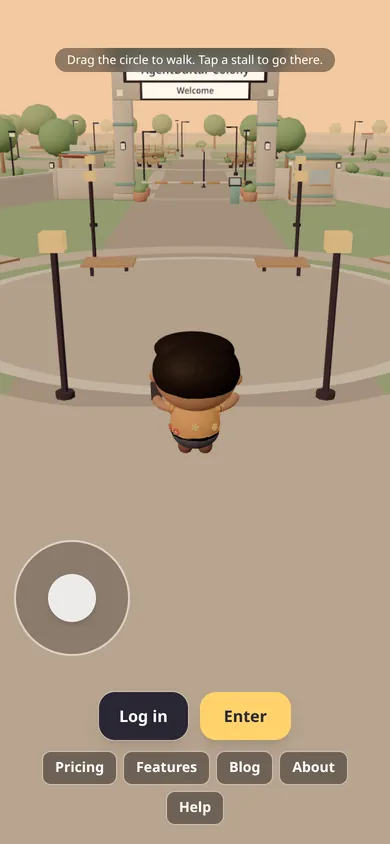
- At the gate, walk up to the barrier, or tap Enter or Log in. Your character walks to the guard.
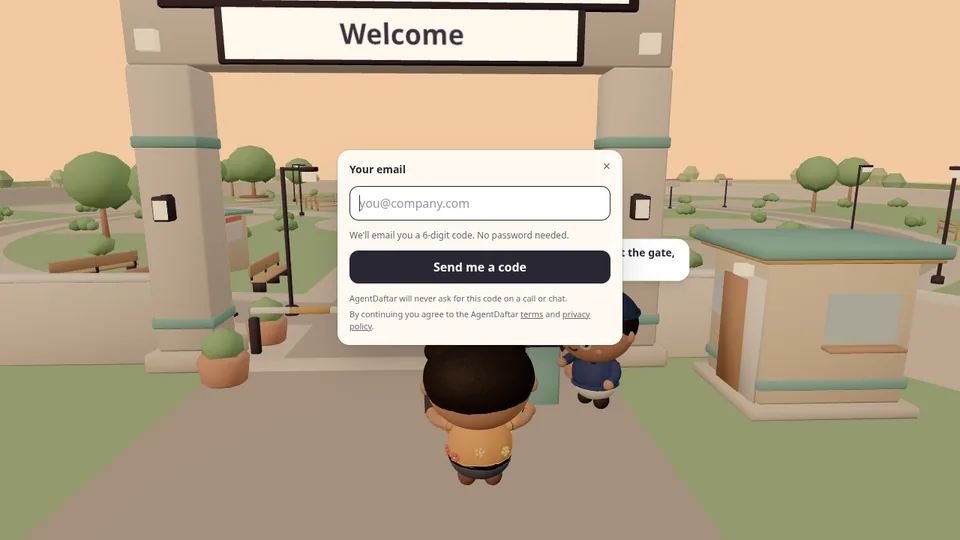
- The guard comes out of his cabin and asks for your email. Type it in and tap Send me a code.
- You will see: "If {your email} can sign in, a code is on its way. Check your inbox, and your spam folder too."
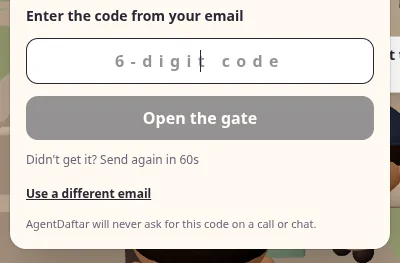
- Open the email and find the 6-digit code. It works for 10 minutes.
- Type the code (pasting works too) and tap Open the gate.
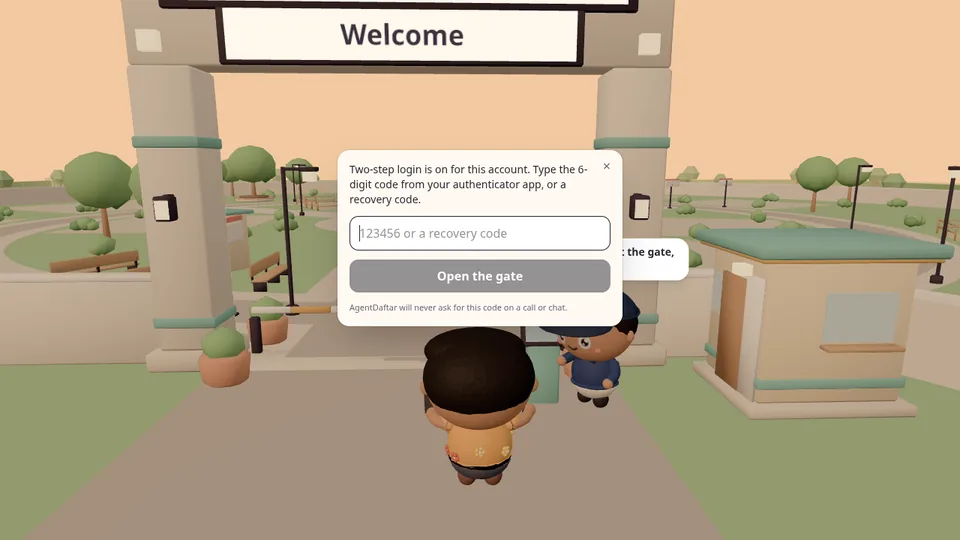
- If two-step login is on for your account, the card asks for one more code. It says:
Two-step login is on for this account. Type the 6-digit code from your authenticator app, or a recovery code.
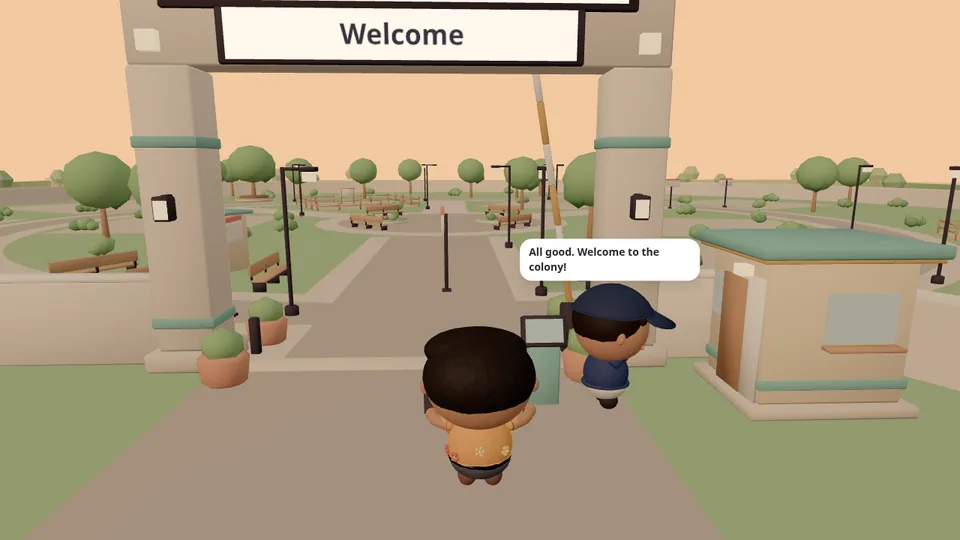
Type the code from your authenticator app, or one of your recovery codes, and tap Open the gate. - The guard salutes and the barrier lifts. Walk through. You are in the colony.
Keep your code to yourself. AgentDaftar will never ask for your login code on a call or in a chat. The guard only asks for your email and the code we send you, never a password, phone number or payment.
Wrong email? Tap Use a different email.
No 3D on your device? If your browser can't show the 3D gate, Log in opens a plain login page instead. It works the same way.
2. Moving around
On a phone
| To do this | Do this |
|---|---|
| Walk | Drag the circle (bottom left). Push it further to go faster. Let go to stop. |
| Turn | Drag anywhere on the screen. |
| Look around | Hold 👁️ (bottom right) with one finger and drag with another. Let go and the view comes back behind you. |
| Go somewhere | Tap a stall, a door, an office or a plot. |
On a computer
| To do this | Do this |
|---|---|
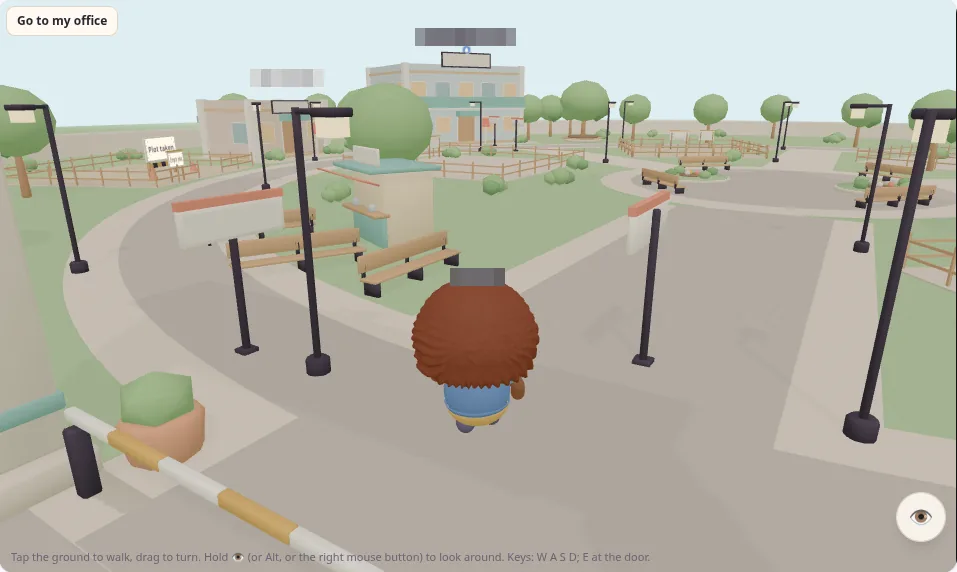
| Walk | W A S D or the arrow keys. You can also click where you want to go. |
| Turn | Drag with the mouse. |
| Look around | Hold 👁️, or hold Alt, or hold the right mouse button, and move the mouse. Let go and the view comes back behind you. |
| Use your door | Near your own door, press E or Enter. |
3. Your office
Walk up to your own office's door. An Open the door (E) button appears at the bottom of the screen. Tap it, or press E or Enter on a computer.
The door panel opens. It shows your company name and two buttons:
- See the office: opens your Live Office, where you see your AI employees and what they are doing.
- Visitor Hall: opens the Hall, the room where you meet visitors.
No AI employees yet? You see a Build your office card instead of a door. It helps you set up your office. See Build Office: how to set up your office.
Coming soon Walking inside your office from the colony.
- Go in at your door opens it, and you walk straight in. The page doesn't change. Go out takes you back through the same door.
- Inside, your AI employees sit at their desks. Each one shows its name and state, for example:
- Working: doing a task now.
- Free: waiting for work.
- Claude limit reached: your Claude plan's limit has run out. The employee carries on when the limit comes back.
- The Visitor Hall is the room where you meet visitors. When an employee is in the Hall, their desk chair is empty.
4. Other offices' doors
Every office shows its door state from the street. The owner chooses it.
| Door | What it means |
|---|---|
| Closed | No visitors right now. |
| Invite only | Only people the owner invites can come in. |
| Ring the bell | Ring, and the owner decides whether to let you in. |
| Open | Visitors are welcome. |
Coming soon Going inside another office. When the owner lets you in, you will enter their Visitor Hall only, never their employees' rooms.
5. Empty plots
Plots without an office are empty. Want one? See the plans on the Pricing page.
6. Coming soon Emotes
Wave, dance and more, to say hello to other people in the colony.
FAQ
The code didn't come.
- Check your spam or junk folder.
- Check the email address you typed. Tap Use a different email to fix it.
- Wait a minute, then tap Send again. The button shows a countdown until you can.
- Each code works for 10 minutes. Always use the newest email.
It says I tried too many wrong codes.
- After a few wrong tries, a code stops working. Send a new one and type it carefully, or paste it.
- If you try very often in a short time, the guard asks you to take a short break. Wait a minute, then try again.
- If you see "Too many wrong codes today. Try again tomorrow.", log in again the next day. You can also use a different email you sign in with.
The page is slow on my old phone.
- The colony helps by itself: if it runs slowly in the first few seconds, it switches to a lighter look (no shadows, less smoothing).
- Close other apps and browser tabs, and update your browser to the latest version.
- If your phone can't show 3D at all, the gate shows a picture instead. Log in and Enter then take you to the plain login page, which works the same way. Inside, you will see "The 3D colony could not open on this device." Try a newer phone or a computer to walk around the colony.
Need more help? Write to [email protected]. Never share your password or login code with anyone.
More help: Build Office: how to set up your office.