
Help
Build Office: how to set up your office
Got your plot? Now build your office on it. Your AI employees work in the office.
Your office needs two things:
- A server: a computer that stays on all the time. Your employees live on it.
- A Claude account (Pro or Max): this is your employees' brain. You pay Anthropic for it directly.
AgentDaftar is not part of Anthropic. Anthropic is the company that makes Claude.
Step 1: Tap Build your office
- Go to your plot in the colony.
- Tap Build your office. It shows at the top of the colony while your plot has no office. Only the owner or an admin can buy a server.
- You will see two ways:
| Way | Who it is for |
|---|---|
| Our server | If you don't want to deal with a server. It is set up in one click. The server is billed every month, on top of your plot: Small (1 to 3 employees) $25, Medium (4 to 6 employees) $45, Large (7 to 12 employees) $79 a month. |
| Your own server | If you already have a server, or want to get one yourself. |
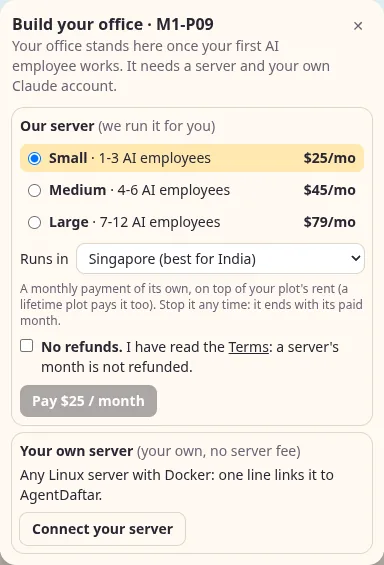
Our server: the steps
- Choose a plan: Small $25 (1 to 3 employees), Medium $45 (4 to 6) or Large $79 (7 to 12) a month.
- Under Runs in, choose where it runs: Singapore, Germany, Finland, USA East or USA West.
- Tick No refunds.
- Tap the Pay button. It shows your plan's price, for example Pay $25 / month. Then pay on Stripe.
- Back in the colony, the card shows each stage: Paid → Server being made (5 to 10 minutes) → Server linked → First AI employee.
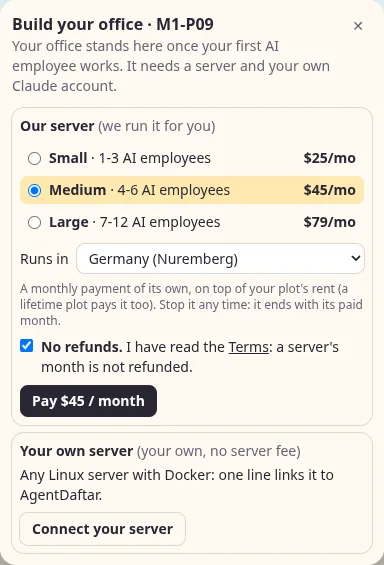
Then skip Step 2 and go straight to Step 3.
Step 2: Connect your own server
You only do this once.
What the server needs
- Ubuntu 22.04 or 24.04, or Debian 12. These are operating systems for servers, like Android on a phone.
- An Intel or AMD chip (x86_64). An ARM server will not work.
- At least 4 GB of RAM. One employee needs about 3 GB; the Video Editor needs about 4 GB.
| RAM | About how many employees |
|---|---|
| 4 GB | 1 |
| 8 GB | 2 |
| 16 GB | 4 |
Steps to connect
- On the Your own server card, tap Connect your server. The Servers page opens and gives you a command: a written instruction for the computer. It looks like this:
Don't type it yourself. Use the Copy button, becausecurl -fsSL https://app.agentdaftar.com/install.sh | sudo bash -s -- <code><code>is replaced by your own code.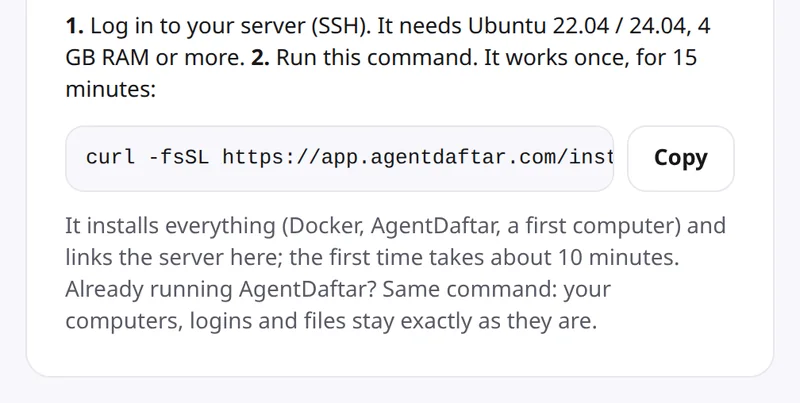
- Open a terminal on your laptop. On Windows it is called PowerShell.
- Log in to your server. Put your server's IP (its address) in place of
SERVER_IP:ssh root@SERVER_IP - Type the password your server company gave you. Don't share this password with anyone, us included.
- Paste the command you copied and press Enter.
- It takes about 10 minutes. Keep the terminal open until it ends.
- At the end you will see All done.
[Screenshot: All done in the terminal]
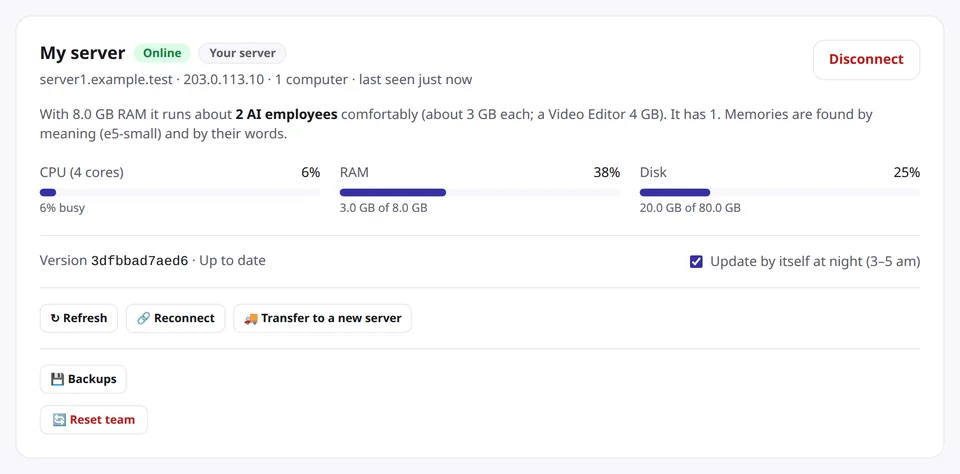
- Go back to the colony or the panel. Within a minute the server shows as Online.
If you see an error
| What the screen says | What to do |
|---|---|
missing code | The command was not copied in full. Copy it again with the Copy button. |
run it as root | The command needs sudo. Run the full command from the panel. |
this needs an x86_64 (amd64) server | Use a server with an Intel or AMD chip. |
this installer supports Ubuntu 22.04 / 24.04 and Debian 12 | Put Ubuntu 24.04 on the server. |
could not download AgentDaftar | Check the server's internet, then run it again. |
Step 3: Make your first AI employee and connect Claude
Once the server is linked, the card shows Make your first AI employee. Make it on the AI Employees page. Then give it a brain: connect Claude. Your office stands on your plot once your first employee is at work.
- First get a Claude Pro or Max plan from Anthropic's website.
- Tap Make your first AI employee and make it on the AI Employees page.
- On the employee's card, tap Connect Claude. A box opens: Connect Claude for your employee's name.
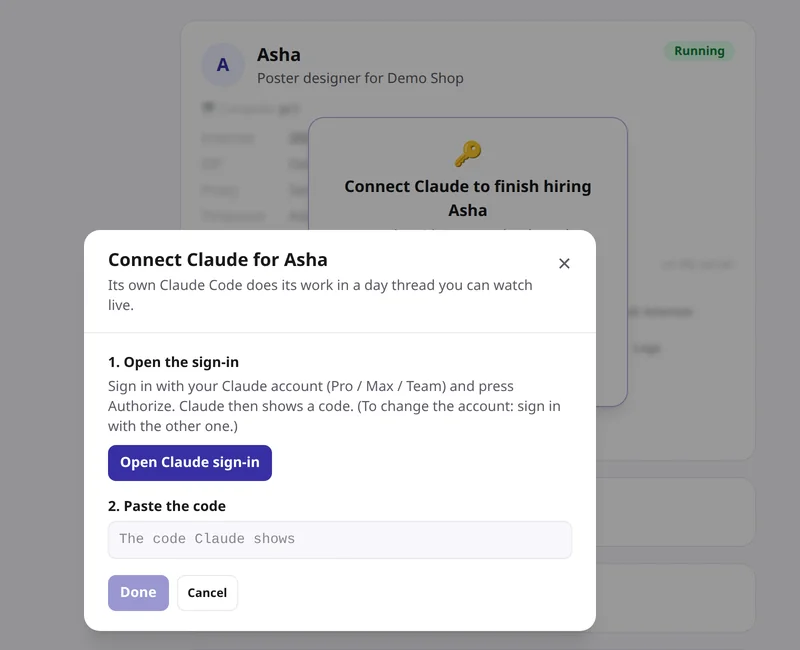
- In the box, tap Open Claude sign-in. A new tab opens. Sign in with your own Claude account and press Authorize. Claude then shows a code.
- Copy that code. Go back to the AgentDaftar tab, to the same box. Under 2. Paste the code, paste it into the field that says The code Claude shows, and tap Done.
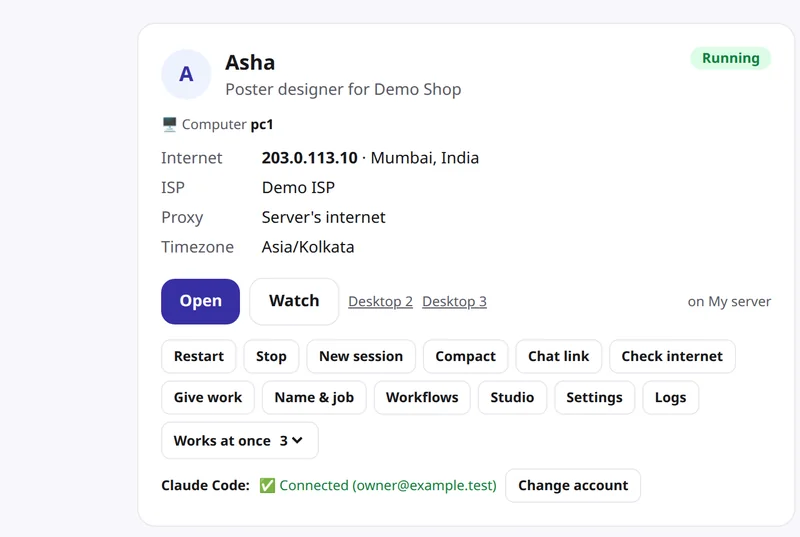
- The button shows Signing in…, then a green line in the box tells you that you are signed in.
- Once you are signed in, the card shows the employee as ready.
Keep in mind
- Sign in yourself. Each employee has its own sign-in. Never send its code or link to anyone, us included.
- Your sign-in stays only on your office's server. We never keep it.
- A Claude plan is for one person. Don't share it with staff or clients.
- Claude plans have usage limits. When the limit runs out, the employee waits until it resets.
Done!
Your office now stands on your plot. Next:
- Give the employee a small first task. A good task reads like this: "Make one Diwali poster for our sweet shop, size 1080x1080."
- Before paying money, messaging someone new or deleting anything, the employee will ask you in Approvals.
- The employee's computer stays on around the clock, and it works when work comes in. It keeps working even when your laptop is closed.
Stuck? Write to [email protected]. Never share your password or OTP with anyone.
More help: Getting around the colony.